Text merge
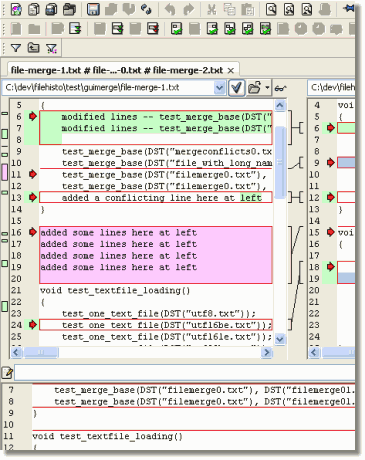
This view demonstrate the side-by-side merge. Merge is tailored to show you major differences and help you to conciliate quickly the versions.
- conflicts are marked with red arrows so that you immediately see them
- a side bar graph allow you to quickly reach portions with differences
- the top arrows button allow you to navigate directly to next or previous conflicts, unresolved conflicts and differences.
- once a conflict is fixed, it becomes black and the 'unresolved' conflicts navigation buttons jumps it
- the source texts are not modified so that you do not get confused by earlier modifications
- the bottom text editor is fully editable and allows you to change text inside and outside the conflicts, full undo/redo is supported
- the middle graph shows you the association between lines of left and right file, and ancestor if present
- added, removed and changed are marked with different background colours for clear presentation
- changes inside lines are marked with colours so that you see them at a glance
|
|
Folder merges
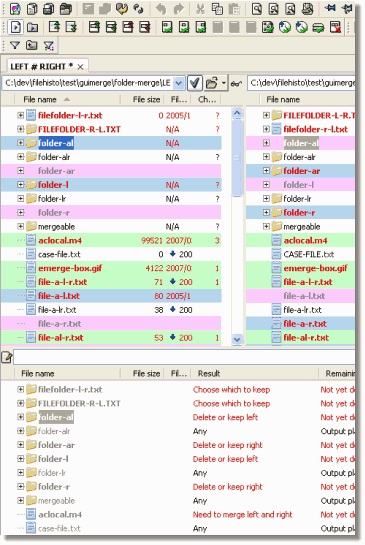
This is the view which you use when you want to treat numerous files located in similar folder tree structures |
- conflicts are marked with red bold lines so that you immediately see them
- you can ignore file and folders thanks to numerous rules (presence/absence, dates, name filters) or selectively if no rule fits your needs
- you can copy, update or mirror a source to another with a simple drag'n'drop
- the top arrows button allow you to navigate directly to next or previous conflicts, unresolved conflicts and differences.
- added, removed and changed files are marked with different background colours for clear presentation, using same colors as in text files
- bottom view shows that is actually in the Other folder, as well as, the expected result (based on your actions and the default rules)
- you can simply view, edit, diff or merge items by a right click
- you can launch differentiation or merge of dozens of files by selectiong sub-folders and/or using multi-selection
- the different views are synchronized vertically
- you can choose the columns to view
- you can simulate write operations before running them
- each role in the comparison or synchronization can be held by a FTP/S server or a SCC (such as CVS, SubVersion, SourceSafe...)
|
|
Images comparison
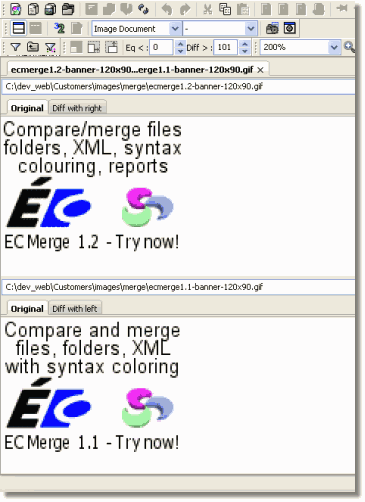
This view shows you the differences two images |
- several comparison algorithms are available (differencing per channel, numerical component difference, attenuating similarities)
- usual quality numbers such as PSNR (Peak Sound to Noise Ratio) and MSE (Mean Square Error) can be generated
- you can use the contextual menu to speicfy images alignement (centering, left, right, top...)
- you can specify 'almost identical' and 'too different' thresholds
- HTML or XML reports can be generated for subsequent exploit of the results
- you can position images vertically or horizontally to fit their aspect ratio
- you copy the comparisons images to the clipboard to svae them
|
|
other screenshots |
|
|
|

