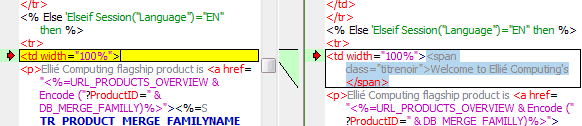
Once you have set the cursor on a conflict area, you
can solve it.
To solve a conflict, you can:
double click anywhere inside a conflict text block in the
comparison views
click in the margin on the conflict marker to make the
lines replace the corresponding block of lines in the result
file.
click on the following action icons in the top toolbar,
the flying toolbar or in the
popup menu
displayed when you right click in any text pane:
IMPORTANT: the contextual and the
Actions menus contains
more features than the toolbar.
These
icons solve the conflict by using the
text respectively from the left and right
file.
These
icons solve the conflict by using a combination of
the left and right pane contents in the order shown
by the icon (respectively left then right and right
then left).
This
icon uses the ancestor content to solve the conflict.
This
action is available only when the ancestor document
has been specified even if it is hidden.
This
icon uses merges left and right content using in-line
differentiation information (if you did not selected
character or word level in the options, character
level differentiation is computed on the fly).
In-line conflicts are surrounded in the results with
by these markers: <<< left ||| ancestor |||
right >>> (there is no interface yet to
parameter the markers but they can be modified with
scripting).
You can
perform compound operations. For instance, you can copy a
block of lines from one side to the result, and then edit it
further. This will mark the conflict as solved.
The
popup menu commands are applied on all the conflicts contained
in the text selection.
Select
Undo to undo
the most recent edit command, or
Redo to reapply
an undone command.
The
Unresolve
command changes text that has been edited, back to its original
state. It is different from
Undo. Use
Unresolve when you have resolved a conflict,
and you want to restore the conflict as "
to be solved". All changes related to this part of
text are lost (if it was edit by hand, a message box asks you
to confirm).
Unresolve is enabled in the toolbar and in the
Merge menu only when the cursor is located on a solved
conflict.
Solved conflicts
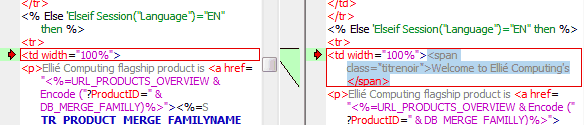
Once a conflict was solved, the red border becomes
black.



 These
icons solve the conflict by using the
text respectively from the left and right
file.
These
icons solve the conflict by using the
text respectively from the left and right
file.
 These
icons solve the conflict by using a combination of
the left and right pane contents in the order shown
by the icon (respectively left then right and right
then left).
These
icons solve the conflict by using a combination of
the left and right pane contents in the order shown
by the icon (respectively left then right and right
then left). This
icon uses the ancestor content to solve the conflict.
This
icon uses the ancestor content to solve the conflict.
 This
action is available only when the ancestor document
has been specified even if it is hidden.
This
action is available only when the ancestor document
has been specified even if it is hidden. This
icon uses merges left and right content using in-line
differentiation information (if you did not selected
character or word level in the options, character
level differentiation is computed on the fly).
In-line conflicts are surrounded in the results with
by these markers: <<< left ||| ancestor |||
right >>> (there is no interface yet to
parameter the markers but they can be modified with
scripting).
This
icon uses merges left and right content using in-line
differentiation information (if you did not selected
character or word level in the options, character
level differentiation is computed on the fly).
In-line conflicts are surrounded in the results with
by these markers: <<< left ||| ancestor |||
right >>> (there is no interface yet to
parameter the markers but they can be modified with
scripting). to undo
the most recent edit command, or
Redo
to undo
the most recent edit command, or
Redo
 to reapply
an undone command.
to reapply
an undone command. command changes text that has been edited, back to its original
state. It is different from
Undo. Use
Unresolve when you have resolved a conflict,
and you want to restore the conflict as "
to be solved". All changes related to this part of
text are lost (if it was edit by hand, a message box asks you
to confirm).
Unresolve is enabled in the toolbar and in the
Merge menu only when the cursor is located on a solved
conflict.
command changes text that has been edited, back to its original
state. It is different from
Undo. Use
Unresolve when you have resolved a conflict,
and you want to restore the conflict as "
to be solved". All changes related to this part of
text are lost (if it was edit by hand, a message box asks you
to confirm).
Unresolve is enabled in the toolbar and in the
Merge menu only when the cursor is located on a solved
conflict.