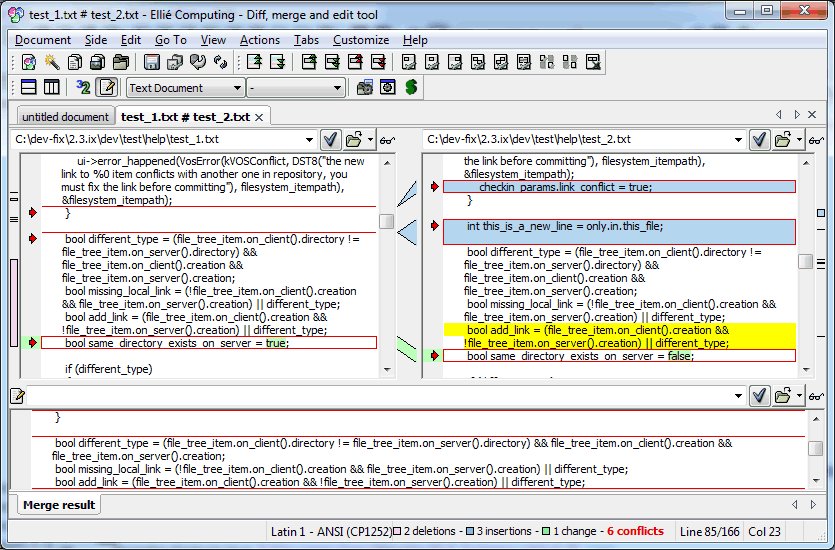
Please
note that this illustration corresponds to the three-way
comparison/merging view, with hidden ancestor. You can see in
this
topic the two-way Text Comparison.
show/hide ancestor Showing or hiding the ancestor is only a display setting
for you. It does not change anything in the comparison process.
When the ancestor is displayed, the lines in the left or
right views that have been deleted from the ancestor are not
included, and the changes linking lines show you the
correspondance between the lines in the ancestor view and the
empty block of lines in the left or right view.
When the ancestor is hidden, the deleted lines are
displayed in the left and right views with the appropriate
background colour.
See also
show or hide the
ancestor for a comparison view,
bookmarks and conflict markers The bookmarks and conflict markers apppear either as an
icon the margin, or as background coloured line of text (using
the corresponding marker colour).
See also
how to use
bookmarks,
how to customize
bookmarks shape and colours
file changes overview (left and right vertical graph
frames)
The frames displayed on the left and right side of
the document represent an overview of the changes in the
respectively left and right sources with respect to the
ancestor. See also
moving
in text files
contextual menu The contextual menu for the current line (or
the selected lines) contains the possible edition
(Cut/Copy/Paste) or
merging (Resolve/Unresolve) action.
See also
resolving
conflicts,
contextual
menu
status bar The status bar shows various information:
the encoding of the file in the current view,
a number of the changes between the files (deletions,
insertions, changes and number of conflicts in Merge
mode),
the colours legend so that you know immediately the
background colour representing deletions, insertions
and replacements
the position of the cursor (current line, total number of
lines, current column).


 Please
note that this illustration corresponds to the three-way
comparison/merging view, with hidden ancestor. You can see in
Please
note that this illustration corresponds to the three-way
comparison/merging view, with hidden ancestor. You can see in