Selecting a file or folder for viewing, editing or comparing
In all Ellié Computing Merge documents, you will find
the same graphical objects to select a file or folder as the
source item.
List of recently used items
The combo box for the desired source contains the list
of recently used items on all available file systems (local
or FTP). You can click on a combo item to select it (the path
to the file/directory + eventual options).
You can type directly the URL (local file name,
FTP/FTPS/SFTP resource or a SCC tool URL) in the combo, or
paste it from the clipboard content. Press Enter to validate
the URL.
Dropping a file or folder to the combo will open it in
the matching view. You can drop files and folders from
outside of Ellié Computing Merge, you can also drop
items from a Folder Comparison document as well as single
items and Site from the Launcher on any combos in the
same document.
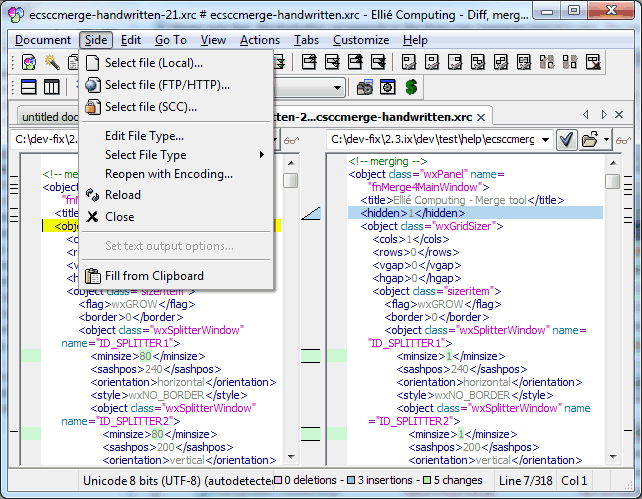
Browse button and menu
Select item: click on the menu item
corresponding to the item you wish to select, using a
selector dialog box (system dialog box for local files and
directories,
Web Source
dialog box for items on FTP/SFTP servers and
SCC Source
dialog box for SCC repository access).
Reopen with Encoding: select the
encoding to use when opening the corresponding source.
Reload: reloads the source item from the
file system and recomputes the differences.
Close: empty the item from the source
panel, and recomputes the differences with an empty
source.
Set text output options: set the default
encoding and line ending character to use when saving text
files.
Fill from clipboard: fills the source with
a temporary buffer filled from the clipboard content.
This option is
available only in Text and Image Comparison.
Result location flag
Each valid source for a comparison can be set as
"output location" for the merge result. This allows you to
write the merge result in any of the input paths and/or in
another path (result written in a temporary location, where
you check your work before saving it in your working
directory). When a source can be selected as "result
location", the icon near the browse button is one of the
following icons:
or
.
The latter
means
it
is selected. Otherwise, you will see a
pair of glasses
. Click
on the icon to swap the flag.
This
icon is enabled only in merge mode. In diff mode,
the source files are read-only.


 This option is
available only in Text and Image Comparison.
This option is
available only in Text and Image Comparison. or
or
 .
The latter
.
The latter
 . Click
on the icon to swap the flag.
. Click
on the icon to swap the flag.