|
Macros: A top sub-menu is present
when macros are available, the default macros work on
the selection and are:
- Exclude / Include only [files or
folders] like [name or *.extension]: this serie of
macros allow you to update name filters easily
- Touch: set last modification date to 'now'
- Set dates: let you set the dates you want for
modification, access and creation time.
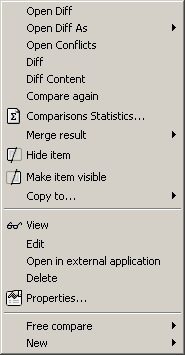
Open Diff: shows the comparison for
the selected file or folder (in non-recursive mode), if
many files are selected all the files are
opened
Open Diff as Text/Image/Binary/Folder
Document: same as Open Diff but forces a
particular type of comparison
Open Conflicts: compares the selected
items and open only the comparison for conflicting
ones
Diff: ensures that the summary of the
selected subset was computed
Diff content: compares the
content of all the selected files (without showing the
files), even if the settings does not tell to
Compare again: resets the comparison
computation, so as to schedule again comparisons based
on latest settings
Refresh: Refreshes the list of
selected files and folders, in the focused pane
only
Comparison statistics: same as Compare
but then shows the comparison statistics in HTML box
when finished. More info about
Comparison
Statistics dialog box
Hide item / Make item visible: hides
or shows the selected items (hidden items can be shown
with the Show hidden items option). Hidden items
content is never compared without explicit
opening. These options are useful to prevent
selectively the comparison of certain files which do
not interest you (in particular big files which may hog
the comparison porcess but which do not interest you in
the instant).
Open in explorer: launches the
explorer on selected folder
View: views all the selected files
(visiting folders recursively), opening in Edit mode if
they are writable
Check-out: checks the files out of the
repository mapped (see
Source
Code Control Mappings)
Open in external application: idem as
View but in the default application defined by the
system
Delete: delete the selected files or
folders
Properties: shows the Item properties
dialog box. You can rename or change the files
attributes from there
Free Compare: sub-items let you
specify left/right and ancestor files that you want to
compare from any folder view, then launch a
comparison.
New Folder/Text file: creates a folder
or an empty file and select it immediately to rename
it
|