This dialog box is a wizard which guides you to prepare your
first comparisons. When you are accustomed, you can
activate the "Jump directly to final page next time" option.
NB: This is a helper box. ECMerge lets
modify all the parameters of a comparison directly from the
source combos and toolbar (including 2/3 way, diff/merge,
options and comparison type).
First screen is a greeting page, press Next to skip
it. Select "Do not show this page again" if you do not
want to see it again.
Second screen "
Which Document Type?"
This page explains what you can do within Text, Image or
Folder comparison, and let you select the Automatic
mode
Third screen "
Diff or Merge?"
This page guides you into choosing Differentiation or
Merge mode.
Fourth screen "
2-way or 3-way?"
This page explains when to choose the 2-way or 3-way
mode, 3-way mode helps you work with multiple parallel
versions.
The final screen: it allows you to review your choice and
modify them, then choose either two or three items
to compare or merge.
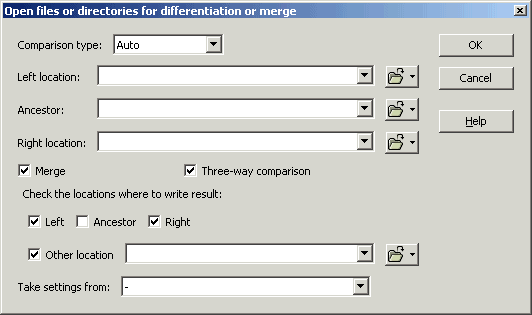
The
Comparison Type list let you choose the type
of document to open (Text, Image, Binary or Folder).
The
Left/Ancestor/Right location drop down lists
contain the latest items that you have recently compared.
Select the left and right items in the drop down lists, or
click on the
button
to browse the file system and select a file. If you open the
drop down menu, you will be able to select files or folders
from both
Local File System and
Web sources. You can also directly type a file/folder
name or a FTP/SFTP URL in the text edit field. More
info about the
FTP URL
syntax.
If you select the
Merge option, the controls below get activated
and you can choose the result location:
ancestor (if three-way comparison), left, and right item,
for in-place merges
another location you can specify using the drop down list
or the
button.
You can leave all or some source fields empty and
select the result path only when validating your merge
work.
Check the
Three-way comparison checkbox to enable the
ancestor source.
When you click on
OK (or press
Enter), a new tab containing the comparison
document is displayed in the main Ellié Computing
Merge window.
The file paths that you specify are stored in the
recently used lists for their corresponding roles (ancestor,
left, right or result).
The
result location information is optional. You can set it or
modify it later in the document options (Edit menu or
in
the toolbar). When saving a merge result file, if the result
location has not been specified, you will be prompted
to select the result location(s) with the
icon
corresponding to the desired result item(s).
You can
also open an empty comparison view for Text or Binary Files,
Images or Folders.
To open a new text file comparison, you can press the
toolbar
icon, type Ctrl + L or select
Document / Comparison/Merge /New Text File Comparison menu item. To open a new
image comparison, you can press the
toolbar
icon, type Ctrl + I or select
Document / Comparison/Merge Document
/New Image Comparison menu item. To open a new
binary comparison, you can press the
toolbar
icon, type Ctrl + Shift + B or select
Document / Comparison/Merge Document /New Image Comparison menu item.
To open a new folder comparison, you can press the
toolbar
icon, type Ctrl + M or select
Document / Comparison/Merge /New Folder Comparison.
Three empty areas where the compared files will be
displayed take up the main part of the window. Above each file
pane is an entry field that you can use to enter the path to a
file or a folder that you want to compare. You can select one
of the most recently used path by opening the drop down list.
The
button
opens a contextual menu. Click on the folder icon to open a
file-browsing window. Click on the arrow to open the menu.
You can
use this dialog box to choose binary files. A message box will
indicate you if the files are identical or different, and no
tab will be displayed in the Ellié Computing Merge main
window.
The Options Set combo box allows you to start a
comparison with another Options set than the default options
set.
Press
F1 or click on the
Help button while in this dialog box will show
this topic.


 button
to browse the file system and select a file. If you open the
drop down menu, you will be able to select files or folders
from both
Local File System and
Web sources. You can also directly type a file/folder
name or a FTP/SFTP URL in the text edit field. More
info about the
button
to browse the file system and select a file. If you open the
drop down menu, you will be able to select files or folders
from both
Local File System and
Web sources. You can also directly type a file/folder
name or a FTP/SFTP URL in the text edit field. More
info about the
 The
result location information is optional. You can set it or
modify it later in the document options (Edit menu or
The
result location information is optional. You can set it or
modify it later in the document options (Edit menu or
 in
the toolbar). When saving a merge result file, if the result
location has not been specified, you will be prompted
to select the result location(s) with the
in
the toolbar). When saving a merge result file, if the result
location has not been specified, you will be prompted
to select the result location(s) with the
 icon
corresponding to the desired result item(s).
icon
corresponding to the desired result item(s). toolbar
icon, type Ctrl + L or select
Document / Comparison/Merge /
New Text File Comparison menu item. To open a new
image comparison, you can press the
toolbar
icon, type Ctrl + L or select
Document / Comparison/Merge /
New Text File Comparison menu item. To open a new
image comparison, you can press the
 toolbar
icon, type Ctrl + I or select
Document / Comparison/Merge Document
/
New Image Comparison menu item. To open a new
binary comparison, you can press the
toolbar
icon, type Ctrl + I or select
Document / Comparison/Merge Document
/
New Image Comparison menu item. To open a new
binary comparison, you can press the
 toolbar
icon, type Ctrl + Shift + B or select
Document / Comparison/Merge Document /
New Image Comparison menu item.
toolbar
icon, type Ctrl + Shift + B or select
Document / Comparison/Merge Document /
New Image Comparison menu item.
 toolbar
icon, type Ctrl + M or select
Document / Comparison/Merge /
New Folder Comparison.
toolbar
icon, type Ctrl + M or select
Document / Comparison/Merge /
New Folder Comparison.